Beast of Reincarnation PC Crash Triage: Check One Cause at a Time
Troubleshoot Beast of Reincarnation PC crashes after patches with a safe order for updates, overlays, graphics features, and useful reports.
When Beast of Reincarnation crashes on PC, the most useful first step is to identify where it fails: before the title screen, during a cinematic, during an effect-heavy fight, or after changing an option. Those patterns point to different checks. Start with the current version and reversible settings before reinstalling, deleting files, or changing several driver options at once.
This checklist complements the main crashes and performance page, which tracks the longer patch history. Here the goal is practical triage: make one change, repeat the same action, and keep a record of whether it helped. The checked-in official notes include fixes for graphics options, upscaling, frame generation, and a save-data issue, so advice written for launch week may no longer match the current build.
Before you change anything
Write down the installed game version, Windows version, graphics card model, driver version, display resolution, and whether frame generation or an overlay is active. Note the last action before the failure: launching, loading a save, fast travelling, skipping a cinematic, opening a menu, or using a Bloom Art. “It crashes sometimes” is much harder to investigate than “it closes every time I load the same save after fast travel.”
If a save is important, use the save safety guide before experimenting. A graphics change should be reversible, but a reported save problem deserves its own backup and should not be mixed into a graphics troubleshooting session.
Step 1: Confirm the game is current
Install the latest stable update offered by Steam or the Microsoft Store, then check the installed version in the launcher or game. Do not assume that two storefronts received identical fixes at the same moment. The current patch notes index summarizes what each version changed and links to the detailed notes.
This matters because several launch complaints already have official changes. The checked record says v1.0.7 addressed cutscene defaults, v1.0.8 added newer upscaling support, v1.0.9 added ultrawide and frame-generation options, and v1.0.10 added separate Film Grain and Chromatic Aberration toggles and a cutscene post-processing toggle. Later records include more frame-generation options and performance work. An old workaround may target a setting that now exists in the menu.
After updating, restart Windows once before testing. This helps ensure that a newly installed graphics driver or game patch is active. It does not guarantee that the crash is fixed, so continue to a repeatable check.
Step 2: Verify installation files and remove temporary conflicts
Use Steam’s installed-file verification or the equivalent repair function in the storefront where you own the game. Let the process finish, then launch the game without changing the save or configuration. Temporarily close optional overlays and capture tools that inject themselves into a game window, such as performance overlays, recording software, or tuning utilities. Re-enable them one at a time after a stable test.
Avoid disabling Windows security protections or downloading unofficial “fix” executables. A crash report is not a reason to install an unknown patch. If a third-party overlay is involved, record its name and version so you can restore your normal setup later.
Step 3: Match the fix to the failure point
Crash before the title screen
Check for a pending game update and a graphics-driver update from the card vendor. Verify the installation files, then launch without overlays. If the game still closes before reaching its menus, record whether the process shows an error dialog or exits silently. Do not jump directly to a Windows reinstall; first gather the exact failure point and system details.
Crash or lock-up during a cinematic
The launch records include a past cutscene soft-lock report associated with rapid skipping and an earlier default presentation mode. Confirm that the game is current and test the same scene without rapidly skipping. If the menu offers a performance-oriented cinematic option in your build, try it and retest. Do not claim that one setting cures every cinematic problem; the useful result is whether the same scene completes reliably after a single documented change.
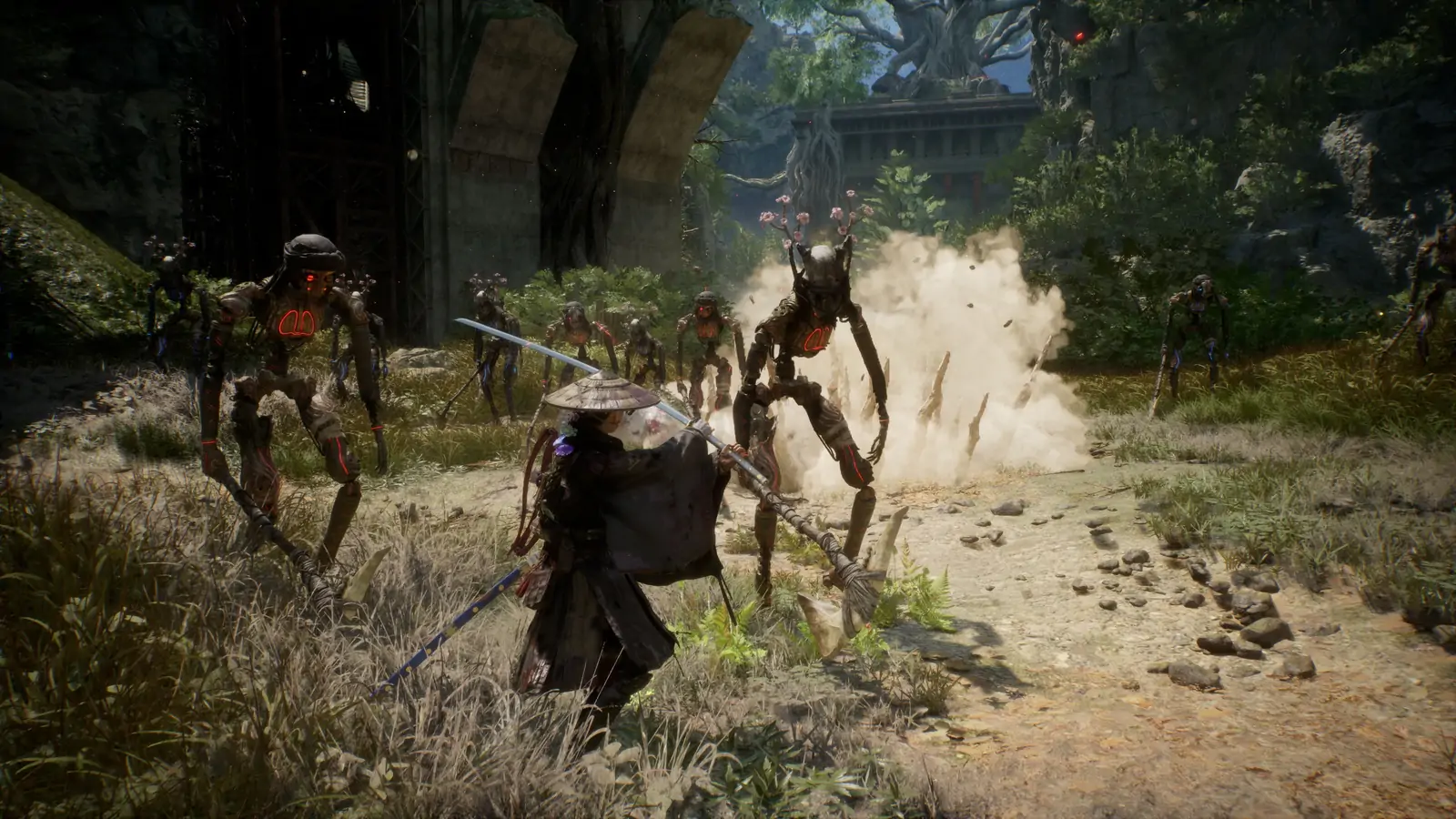
Stutter or crash in effect-heavy combat
Use the same encounter or area for each comparison. First disable frame generation if it is enabled, then test. If stability improves, leave it off while you evaluate the other graphics options. Next reduce one demanding visual setting at a time rather than dropping every option to minimum. The purpose is to identify the setting linked to the problem and keep acceptable image quality.
The official patch record notes multiple improvements to upscaling and frame-generation support over time. That means settings names and available options can differ by patch, GPU generation, and store version. Use only controls that actually appear in your current menu. For broader graphics adjustments, see PC performance settings and fixes.
Crash after fast travel or a respawn
Record the origin, destination, whether Koo was downed, and the action that happened immediately before the crash. An older patch entry documents a fast-travel-and-achievement sequence that could leave Emma beneath the terrain and degrade save-data performance. Another older note addresses Koo’s state after travelling while downed. These are version-specific historical reports, not a reason to repeat the sequence on a valuable unbacked save.
Update first, back up before testing, and compare the same save after a normal restart. If the problem returns, report it with the exact route and game version. Do not overwrite the only save with a downloaded replacement.
Step 4: Change graphics options in a controlled order
If the game loads but runs poorly, make a small test matrix. Keep the resolution and location fixed while changing one option. A simple order is:
- Disable frame generation and repeat the same scene.
- Restore it only if the crash persists, then test a lower effects setting.
- Check whether the selected upscaler offers the quality modes supported by your current version.
- Test cutscene options separately from gameplay options.
- Re-enable overlays only after the game completes a stable run.
Do not copy an exact “best settings” preset from a different GPU and assume it applies. The official PC system requirements give the baseline hardware target, while the performance page tracks current menu options and player workarounds. Requirements do not promise a specific frame rate on every configuration.
Step 5: Separate a performance issue from a save issue
If the crash occurs only on one save, first determine whether a new test file loads. Do not overwrite the original slot. If a new file works but the original does not, the result suggests that the problem is tied to the save state or a particular progression event; it does not prove the save is permanently lost. Preserve the file and report the last successful point, the patch version, and the action that preceded the failure.
If every save and a new game fail in the same location or menu, focus on the game build, graphics path, or system setup. A comparison between one affected save and a new file can narrow the investigation without asserting an unverified cause.
What to include in a useful bug report
Include the game version and storefront, Windows version, GPU and driver version, resolution, graphics features enabled, and the shortest reliable reproduction sequence. State whether you verified the files, whether an overlay was running, and whether the problem occurs on a new save. Attach a screenshot or short capture only if it shows the error clearly, and remove account names or other private data before posting publicly.
Keep results factual: “the crash stopped after disabling frame generation in this scene” is useful. “Frame generation is broken for everyone” is not supported by one configuration. If a patch changes the result, update your report rather than continuing to repeat advice that no longer applies.
Quick current-build checklist
- Update the game and restart the PC.
- Verify installation files through the owning storefront.
- Test once with overlays and capture tools closed.
- Match the troubleshooting step to the failure point.
- Disable frame generation as a reversible comparison if combat scenes fail.
- Change one setting per test and keep the location consistent.
- Protect the save before testing travel, transitions, or restoration steps.
- Record the build and exact reproduction steps before asking for help.
For a dated list of fixed issues, continue to Beast of Reincarnation crashes and performance. For input problems that began after an update, use the controller settings guide so a changed aim behavior is not mistaken for a graphics fault.