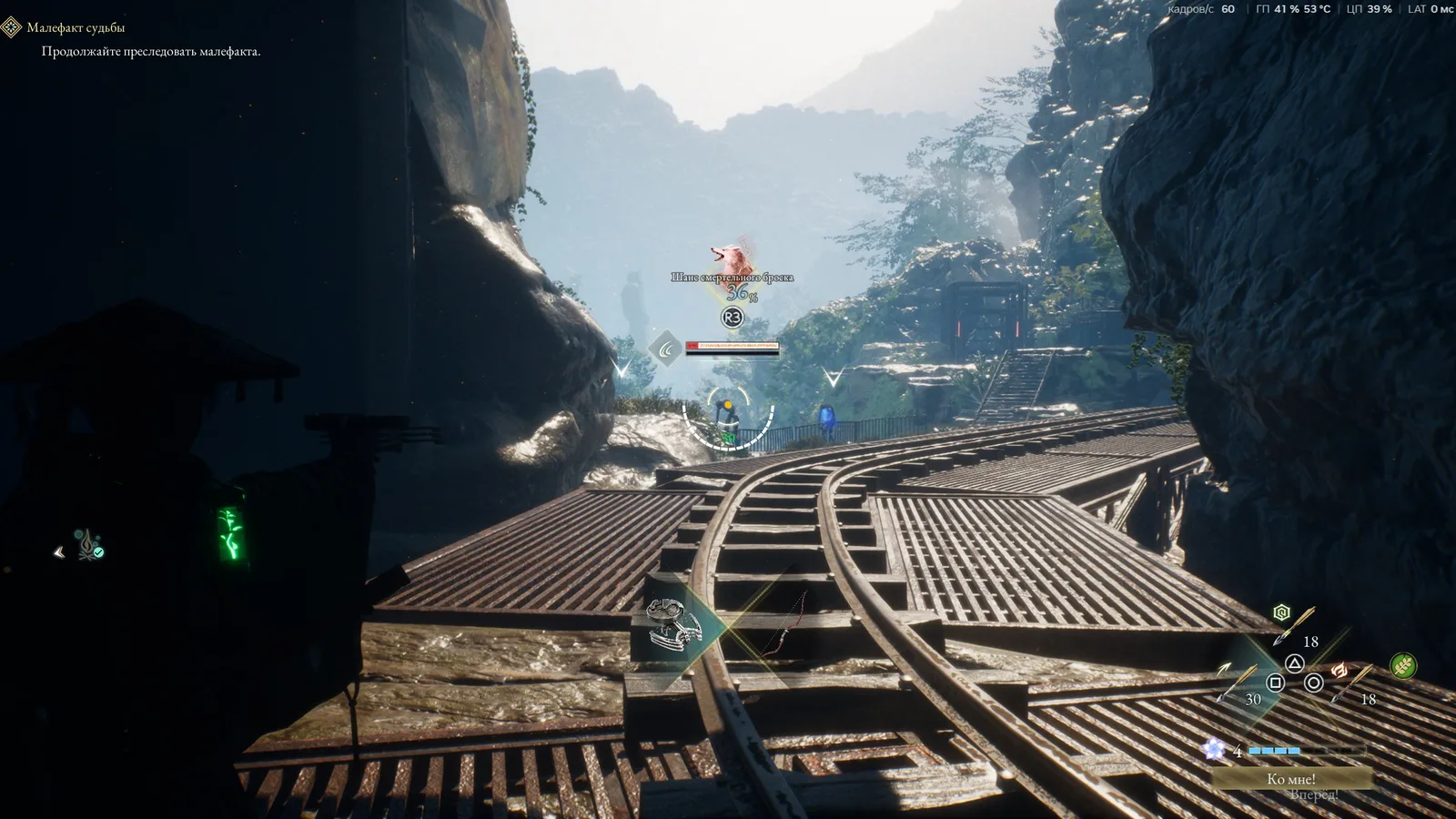
Beast of Reincarnation: Frame Generation Not Working with HDR
Diagnose inactive frame generation with a reversible HDR comparison, a stable native baseline and combat responsiveness checks.
If frame generation appears inactive in Beast of Reincarnation, first compare the same scene with HDR disabled and enabled while keeping resolution, upscaling, and the frame cap unchanged. This is a diagnostic comparison, not a confirmed universal fix. An early-November player discussion identifies the symptom, but it does not establish that every NVIDIA card or HDR monitor is affected. Keep a playable configuration available throughout the test. The purpose is to find which setting changes the symptom on your machine without sacrificing the responsiveness you need for combat.
Describe what “not working” means
There are several different problems behind that phrase. The frame-generation option might be unavailable, the displayed rate might not rise, the counter might rise while movement still feels rough, or the picture might flicker when HDR is active. Write down which one you actually see. Include the selected display, resolution, refresh rate, graphics device, and whether the game is in the foreground. A higher counter without smoother motion is a different observation from a disabled menu option, so the next test should not treat them as identical failures.
Start from a familiar campsite or another repeatable location, then include a short nearby combat section. A quiet scene is useful for comparing settings but cannot tell you how a busy fight will feel. Keep the route short enough that you can repeat it accurately. Look for camera motion, visible judder, and the feel of a defensive input in addition to the counter. Do not use a demanding unfamiliar boss as the test: you need to distinguish a rendering symptom from a mistake caused by learning a new attack pattern.
Establish the non-generated baseline
Disable frame generation through the normal graphics menu and observe ordinary rendering first. Keep your existing upscaler and resolution unchanged during this pass. If the baseline already has severe pauses, frame generation is not the first issue to isolate. Check whether the pauses occur when entering a new area, opening a menu, or during continuous combat. Generated frames cannot be assumed to resolve every type of interruption, and a comparison is much easier to interpret when the base presentation is reasonably consistent.
If you need to lower the workload, make that a separate experiment before returning to the frame-generation question. Change one demanding setting or resolution choice, repeat the route, and note the result. Once you have a stable baseline, stop adjusting it. You now have a configuration you can restore if the next combination produces worse pacing. Avoid installing several external overlays simply to obtain more numbers. Use the monitoring information already available to you, and keep its display method consistent across the comparison.
Compare HDR states without moving the goalposts
Record the current HDR state and how you changed it. Depending on your setup, a relevant option may exist in Windows, the display itself, or the game. Do not assume that changing one switch necessarily changes the complete output path. Close the game before changing an operating-system display setting when needed, then relaunch normally and check the visible result. Keep the same monitor active. Moving between a television and a desktop display during the trial introduces several extra variables before you have answered the original question.
Run the short route with HDR off and frame generation on, then compare HDR on with the other choices unchanged. Restart whenever the interface requests it, and do not call a test complete until the new setting is actually applied. If only one combination reproduces the symptom, repeat that combination once to see whether the result is consistent. That supports a machine-specific observation. It does not prove an official incompatibility, and it does not justify publishing a claim that HDR must always be disabled for this game.
Check the cap and the display path
A frame cap or display synchronization setting can affect what a counter shows. Record the cap rather than removing every limit at once. If you decide to compare another cap, do it after finishing the HDR comparison and repeat the same route. Keep the distinction between a setting that limits the presented rate and a feature that fails to enable. An unchanged number near an intentional limit is not enough evidence to diagnose broken frame generation. The motion and input response should remain part of the assessment.
Also verify that the game is using the display and graphics device you intended. This matters particularly on systems with multiple monitors or more than one graphics adapter. Inspect the normal system and game settings instead of applying an unexplained registry tweak. If the menu option is unavailable, capture its wording and your hardware model. Do not assume that an option supported by another player’s device must appear on yours. A precise record helps distinguish eligibility, configuration, and a genuine failure after the feature has been selected.
Judge the result during a readable fight
Repeat an ordinary encounter with a predictable attack and enough space for camera movement. Compare the ease of reading the enemy’s motion and performing the same defensive response. The goal is comfortable play, not the largest number on the screen. If generated frames look smoother but your preferred defensive rhythm feels worse, retain the baseline while you investigate. There is no reason to risk a valuable attempt to preserve a setting whose advantage you cannot identify in the activity you actually play.
Avoid attributing every failed guard to rendering. If the visual symptom disappears but you still miss one particular enemy move, return to practicing that move with consistent controls. Conversely, if camera movement repeatedly judders in the same place even without an enemy nearby, record that as a presentation problem. Keeping these observations separate prevents a graphics trial from turning into random changes to difficulty, equipment, and controls. A useful test ends with a clearer explanation than “the fight felt different this time.”
Choose a workaround and preserve the evidence
If HDR off is reliably better on your setup, you can use it as a temporary personal workaround and retain the original configuration in your notes. If neither HDR state changes the symptom, stop repeating the same switch. Return to the baseline and report the menu state, hardware, display configuration, and a short reproduction route. Include whether frame generation was disabled, enabled without improvement, or accompanied by a different visual problem. This is more useful than a general claim that the entire graphics feature is broken.
Should you delete configuration files? Not as the first step: doing so erases the baseline you are trying to compare. Should you install a different driver immediately? First record the current driver and finish the reversible in-game comparison; a driver change is a separate system-level test. Does a successful HDR-off trial prove the next update fixed HDR? No; repeat the same route after an update before changing that conclusion. Keep the configuration that makes combat readable now, and let each future comparison answer one specific question.